win32 · Шаг 1. Что установить
Прежде чем собирать TMC Suite под 32 бита, установите перечисленное ниже ПО. Раздел рассчитан на человека, который делает это впервые.
1.1 Visual Studio
Нужна Microsoft Visual Studio Community 2026 (версия v18.6).
Именно эта версия использовалась при реальной сборке проекта (зафиксировано в журнале
ISSUES.md). Набор инструментов компилятора (PlatformToolset) — v145.Уточнить версию: точный номер сборки (билд) Windows SDK, который шёл с этой установкой, не зафиксирован — см. чек‑лист в конце файла.
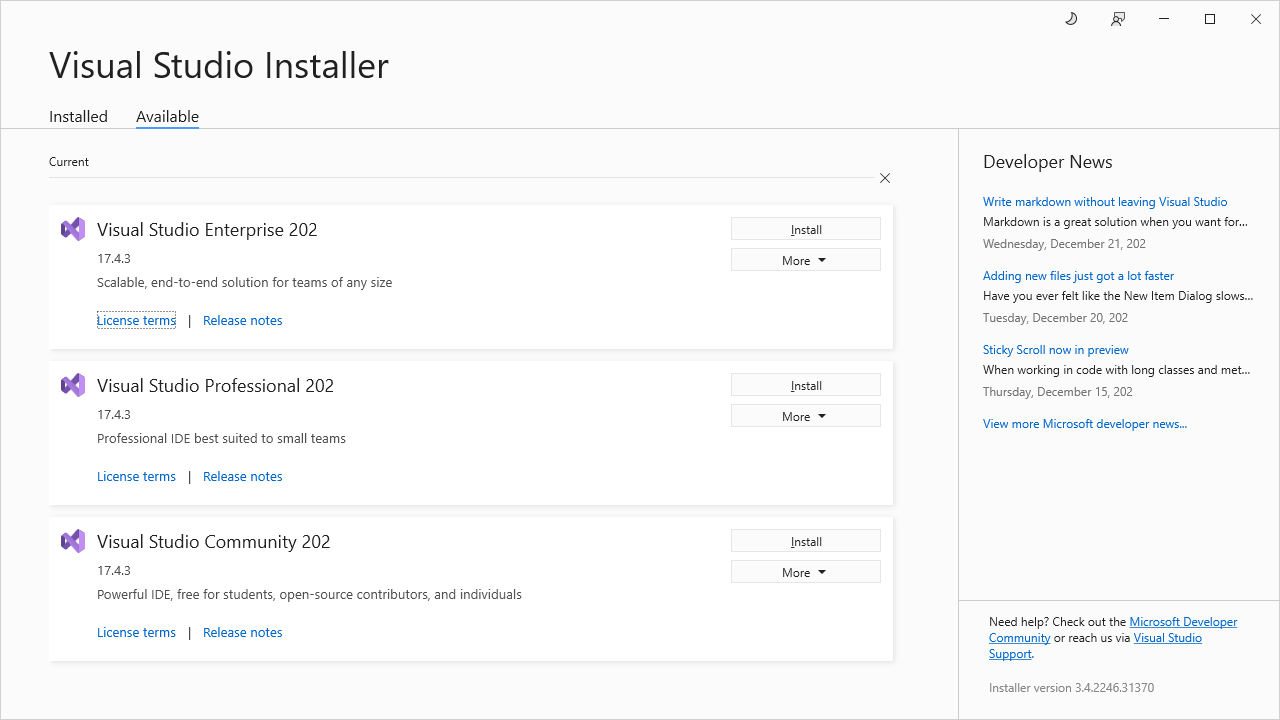
Где скачать
Официальный установщик Visual Studio Community — бесплатный, с сайта Microsoft
(visualstudio.microsoft.com). Скачайте установщик Visual Studio Installer и
запустите его.
Какие компоненты (рабочие нагрузки) отметить
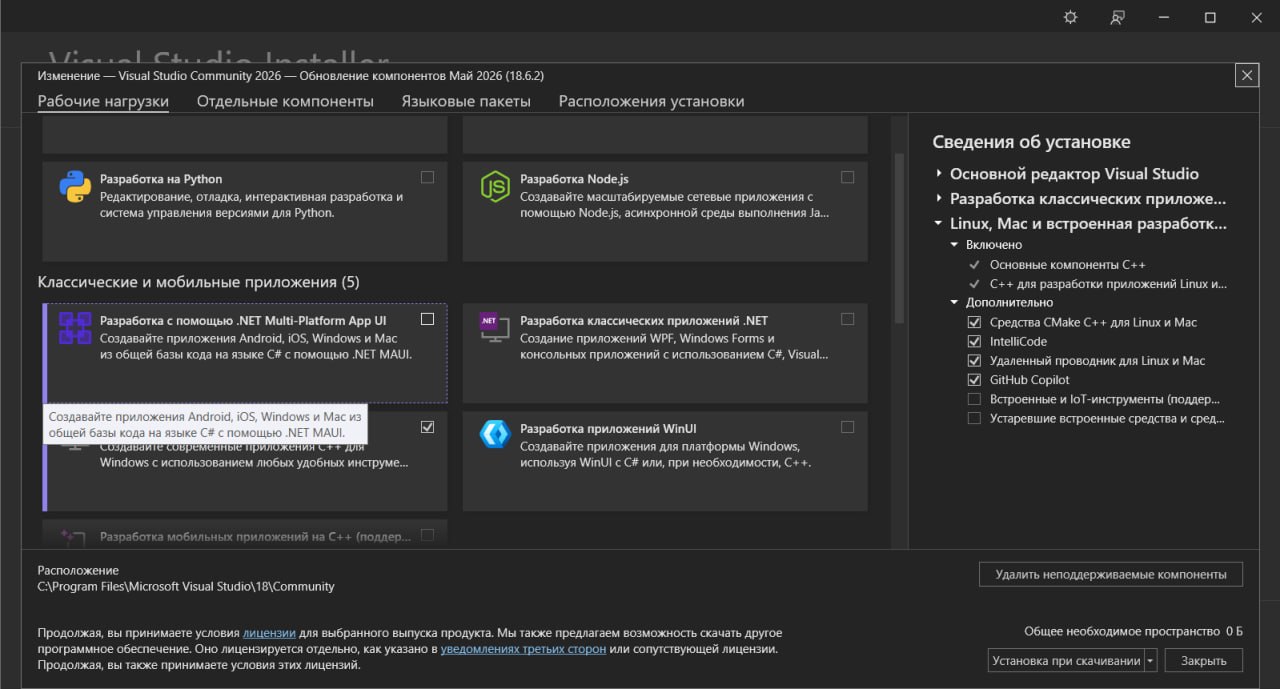
В установщике на вкладке Workloads (Рабочие нагрузки) отметьте:
- Desktop development with C++ (Разработка классических приложений на C++) — обязательно. Это даёт сам компилятор C++ (MSVC, toolset v145), линкер и среду.
Отдельные компоненты, которые надо добавить вручную
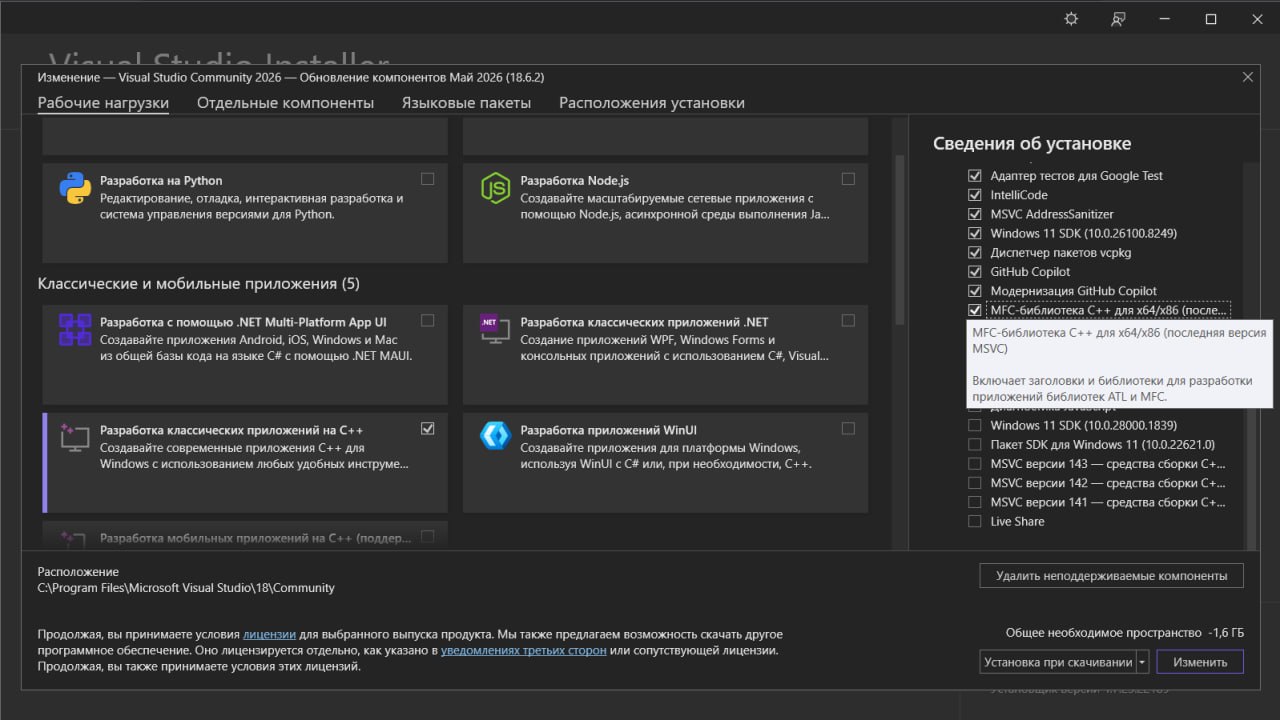
Перейдите на вкладку Individual components (Отдельные компоненты) и убедитесь, что отмечено:
- MFC — Microsoft Foundation Classes для актуального набора инструментов (компонент вида «C++ MFC for latest build tools (x86 & x64)»). Все программы TMC Suite — MFC‑приложения, без этого компонента они не соберутся.
- Windows SDK — комплект средств разработки Windows. Из него берутся системные заголовки и библиотеки, в том числе OpenGL (см. раздел 1.2). Обычно SDK ставится автоматически вместе с рабочей нагрузкой C++; проверьте, что хотя бы одна версия Windows SDK отмечена.
После выбора компонентов нажмите Install (Установить) и дождитесь окончания.
1.2 OpenGL для FieldView (входит в Windows SDK)
Программа FieldView использует OpenGL. Отдельно ничего скачивать и устанавливать не нужно — всё необходимое входит в Windows SDK, который вы поставили вместе с Visual Studio.
Что именно берётся из SDK:
- Заголовки
GL.hиGLU.h— подтягиваются из Windows SDK автоматически (компилятор находит их по стандартным путям SDK; вручную прописывать пути к ним не требуется). - Библиотеки линковки:
opengl32.lib— основная библиотека OpenGL;glu32.lib— библиотека утилит GLU.
Для 32‑битной сборки эти .lib берутся из 32‑битной части SDK (папка um\x86).
Visual Studio выбирает их автоматически при платформе Win32.
Важно: устаревшая вспомогательная библиотека GLAUX (
glaux.h/glaux.lib) в современном Windows SDK отсутствует. В коде FieldView ссылка на неё удалена (правка Ф4‑1, см. файл06-build-fieldview.md). Никаких действий по установке GLAUX выполнять НЕ нужно.Уточнить версию: в данном проекте Windows SDK физически находился на диске F:. На другой машине путь будет иным; точный номер версии SDK не зафиксирован — см. чек‑лист.
1.3 Настройки набора символов и линковки MFC (информация)
Все проекты TMC Suite настроены на:
- Статическую линковку MFC (MFC встраивается в
.exe, отдельные DLL MFC при запуске не требуются). - Набор символов MultiByte (MBCS) — многобайтовая кодировка, не Unicode.
Эти параметры уже заданы в файлах проектов (.vcxproj). Менять их вручную не нужно —
информация приведена, чтобы вы понимали, почему при установке требовался компонент MFC.
1.4 Проверка перед началом
После установки откройте Visual Studio. Если в окне создания проекта доступны шаблоны C++, а в установленных компонентах виден MFC — окружение готово.
Переходите к файлу 02-setup-paths.md.
Чек‑лист «что уточнить»
- [ ] Точный номер версии (билд) Windows SDK, поставленного с VS Community 2026.
- [ ] Путь к Windows SDK на конкретной машине (в проекте был диск F:).
win32 · Step 1. What to install
Before building TMC Suite for 32 bits, install the software listed below. This section is written for someone doing it for the first time.
1.1 Visual Studio
You need Microsoft Visual Studio Community 2026 (version v18.6).
This is exactly the version used for the real build of the project (recorded in the
ISSUES.mdlog). The compiler toolset (PlatformToolset) is v145.Clarify the version: the exact build number of the Windows SDK that came with this installation was not recorded.
Where to download
The official Visual Studio Community installer is free, from the Microsoft site
(visualstudio.microsoft.com). Download the Visual Studio Installer and run it.
Which components (workloads) to select
In the installer, on the Workloads tab, select:
- Desktop development with C++ — required. This provides the C++ compiler itself (MSVC, toolset v145), the linker and the environment.
Individual components you have to add manually
Go to the Individual components tab and make sure the following is selected:
- MFC — Microsoft Foundation Classes for the current build tools (a component like "C++ MFC for latest build tools (x86 & x64)"). All TMC Suite programs are MFC applications; without this component they will not build.
- Windows SDK — the Windows software development kit. It provides the system headers and libraries, including OpenGL (see section 1.2). The SDK is usually installed automatically together with the C++ workload; check that at least one version of the Windows SDK is selected.
After selecting the components, click Install and wait for it to finish.
1.2 OpenGL for FieldView (included in the Windows SDK)
The FieldView program uses OpenGL. You do not need to download or install anything separately — everything required is part of the Windows SDK you installed together with Visual Studio.
What exactly is taken from the SDK:
- Headers
GL.handGLU.h— pulled from the Windows SDK automatically (the compiler finds them via the standard SDK paths; you do not need to specify paths to them manually). - Link libraries:
opengl32.lib— the main OpenGL library;glu32.lib— the GLU utilities library.
For a 32-bit build these .lib files are taken from the 32-bit part of the SDK
(the um\x86 folder). Visual Studio picks them automatically for the Win32
platform.
Important: the obsolete helper library GLAUX (
glaux.h/glaux.lib) is absent from the modern Windows SDK. The reference to it has been removed from the FieldView code (change F4-1, see06-build-fieldview.md). No action to install GLAUX is required.Clarify the version: in this project the Windows SDK physically resided on drive F:. On another machine the path will differ; the exact SDK version number was not recorded.
1.3 MFC symbol set and linking settings (for information)
All TMC Suite projects are configured for:
- Static MFC linking (MFC is embedded into the
.exe; separate MFC DLLs are not needed at startup). - The MultiByte (MBCS) character set — multibyte encoding, not Unicode.
These parameters are already set in the project files (.vcxproj). You do not need to
change them manually — the information is given so you understand why the MFC component
was required during installation.
1.4 Check before you start
After installing, open Visual Studio. If C++ templates are available in the new-project window and MFC is visible among the installed components, the environment is ready.
Proceed to the file 02-setup-paths.md.